Location: Termination Process
After a termination application has been received and acknowledged, a Termination Calculation is performed and saved as 'Pending'. Then an option letter is generated and sent to the member. Upon receipt of the returned option form, Final Processing is performed to set Payment and Tax Instructions and change the Status to 'Process'. Lastly, the Disbursements/Payroll batch is run to disburse the benefit.
The following procedure describes the calculation and final processing stages of the termination process.
Use the following steps as a guide to process a termination for a DB plan member.
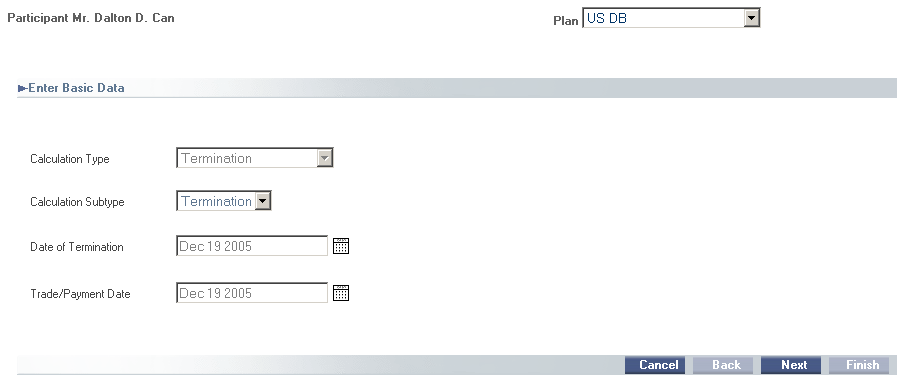
Ensure that the correct plan is selected and from the Termination process click to select the Termination Calculation event. The system displays the Calculation wizard with the Calculation Type 'Termination' selected.
If necessary, use the Calendar to change the defaults for Date of Termination and Trade/Payment Date and then click Next to display a Summary.

If the Summary is correct, click Next. The system displays the Calculation Results worksheet.
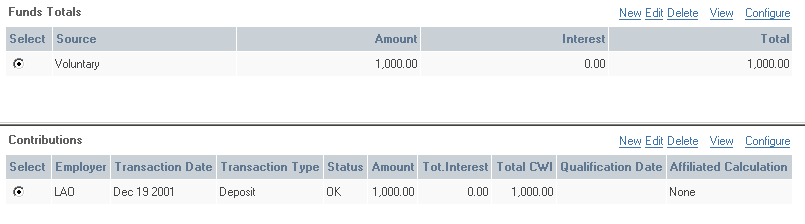
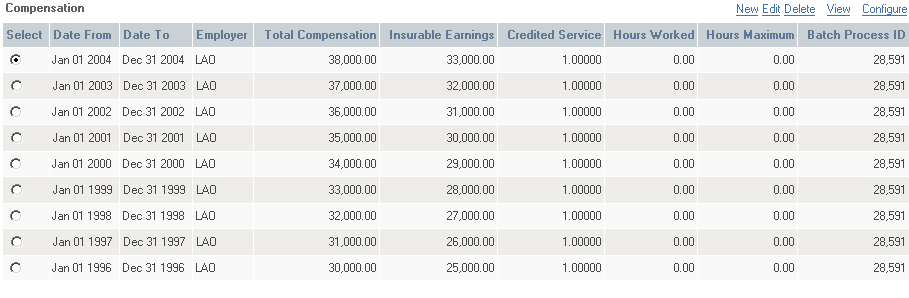
The system displays the Calculation Results screen for the selected member. Calculation tabs include Options, General, Service, Contributions, Factors, Earnings, Summary, and Pension. In addition, you can access system table data by selecting the table you want from the Data folder.


To save the calculation, scroll down and click Finish. The system saves the calculation as Pending and displays the Calculation History browser from which you can open and review the calculation.

The following supporting views are associated with a Termination Calculation:
From the Termination process, ensure that the correct plan is selected and then click to select the Final Processing event. The Benefit Disbursement Wizard launches and displays a disbursement Summary of payment instructions from which you can modify the default values for the Disbursement Fee, Tax Instructions, Deduction Instructions, and Payment Instructions.

Click the first Modify button to modify the Payout Instructions. Set the Fee to $10.00, and click Next to return to the Summary screen.

Click the Modify button beside the Tax Instructions to open the Modify Pension Tax Instructions screen. Set the Tax Type, and Tax Calculation Method. If necessary, enter a Flat Amount.

Click Next to return to the Summary screen.
Click the next Modify button to open the Modify Deduction Instructions screen.

Click Next to return to the Summary screen.
Click the next Modify button to open the Modify Payment Instructions screen. Ensure that the Payment Method remains at the default value, Cheque.

Click Next to return to the Summary screen.

If the Summary screen requires no further modifications, click Finish. The system processes the Payout Request and displays the calculation History. Notice that the Status has changed from 'Pending' to 'Process'.

For information on how to disburse the benefit, see How to Run a DB Disbursements/Payroll Batch Online.
Build 1136
